MixCaptions AI Text, Subtitle
Mixcord IncVideo Players & Editors
3.553.00 Reviews
- Version
- 2.86.0.1.2.0
- Installs
- 100.00K
- Age Rating
- Everyone
Screenshots
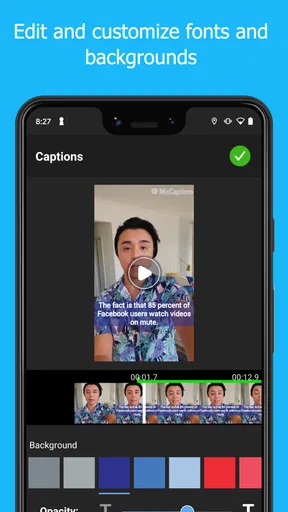
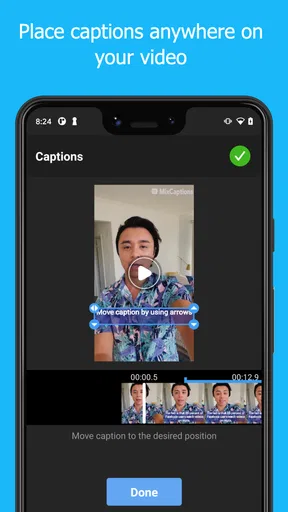
Our Review of MixCaptions AI Text, Subtitle
 Analysis by Appyee
Adding captions to a short video sounds simple until I actually have to do it repeatedly. I need to understand the speech, correct obvious mistakes, make the text readable, and then export something that still looks natural on a phone screen. MixCaptions AI Text, Subtitle focuses on that exact problem: creating captions automatically for spoken video. After spending time with it, I see its strongest value in reducing the first, most tedious part of the editing process rather than replacing a careful editor.
This is a free video player and editing app from Mixcord Inc, aimed at people making content for Instagram, IGTV, TikTok, YouTube, Facebook, and X. It is rated for Everyone, so its basic purpose is easy to understand even for someone who has never used a captioning editor before. The app has an average rating of 3.5 from around 500 ratings and more than 50 written reviews, which suggests a useful but not universally smooth experience. My own view is similar: the automatic captioning idea is practical, but the final result depends heavily on the recording and on how much time I am willing to spend checking the text.
Automatic captions are useful because they remove the slowest first step
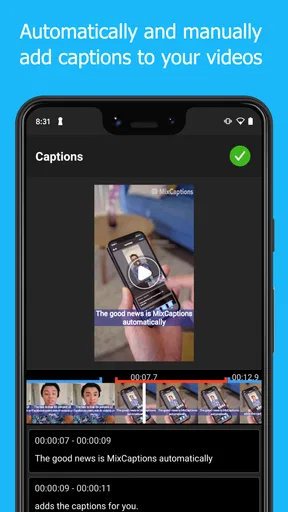
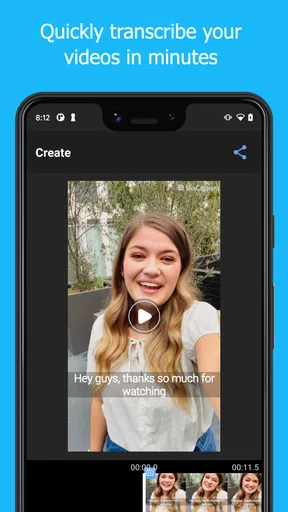
The central capability is automatic speech-to-text captioning. Instead of typing every sentence manually and placing each line along a timeline, I can start with the spoken audio and let the app create a caption draft. That distinction matters. I do not treat the generated subtitles as finished work; I treat them as a starting point that saves me from building the entire transcript from zero.
That makes the app especially relevant for vertical videos, talking-head clips, interviews, demonstrations, and quick social posts where the message is carried mainly by speech. Captions can help when viewers are watching without sound, but they also make a video easier to follow when the speaker has a strong accent, uses technical terms, or talks quickly. The practical benefit is not that every word becomes perfect automatically. The benefit is that I can spend my time correcting a draft instead of entering every sentence myself.
I found this approach more useful for short, clearly spoken clips than for complicated audio. A single speaker recorded close to the phone gives the caption engine a much better foundation than several people talking over one another. Background music, traffic, echo, laughter, and sudden changes in volume all make the result less dependable. That is not a reason to dismiss the app, but it changes how I use it: I plan for a review pass whenever the audio is less than clean.
The important mindset is to use automatic captions as an editing shortcut, not as a guarantee of a publication-ready transcript. That expectation keeps the experience realistic. When the speech is clear, the time saved can be considerable. When the recording is messy, the app may still provide a rough structure, but I need to correct names, punctuation, and timing before sharing it.
What the caption workflow feels like
The usual workflow begins with a video that already contains the speech I want to present. I use the app to generate the caption layer, then inspect the text against the actual audio. This second stage is where the quality of the final video is decided. A caption that is technically close but split at awkward moments can be harder to read than a shorter, better-timed line.
I recommend watching the entire clip once after the automatic pass, without trying to fix every word immediately. That first viewing helps me notice larger problems: whether the captions appear too quickly, whether a sentence is divided in an unnatural place, and whether the text covers a face or an important object. After that, I go back for detailed corrections. This two-pass method is faster than stopping after every sentence during the first review.
Names and specialist vocabulary deserve special attention. Automatic recognition can handle ordinary speech more comfortably than a product name, local place, medical term, or unusual surname. If the video is a tutorial, I also check numbers and abbreviations carefully, because one incorrect character can change the meaning of an instruction. I would rather spend a few minutes checking those details than assume the first transcription is reliable.
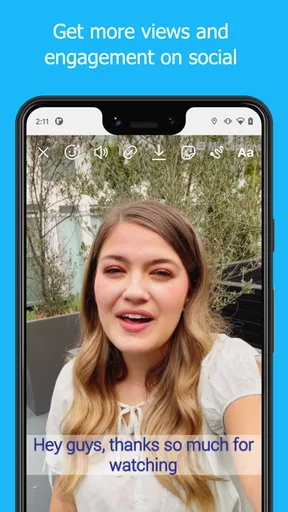
Caption placement is another practical concern. Text at the very bottom may compete with the interface controls used by social platforms, while text across the center can hide the speaker’s expression or the item being demonstrated. I try to keep the words in a quiet area of the frame and preview the result at the same portrait orientation in which people will watch it. A caption that looks fine in an editor can feel crowded on a small screen.
A realistic everyday use case
Imagine I record a quick cooking clip after work. I explain the ingredients, show the pan, and speak while moving around a small kitchen. I do not want to write a transcript manually, but I know many viewers will watch silently. MixCaptions can give me a caption draft quickly, allowing me to correct the names of ingredients, remove a repeated phrase, and check that the text does not cover the food. The app is valuable here because the video is short, the speech is mostly from one person, and the captions carry useful information even when the audio is muted.
In that situation, I would not publish immediately after the automatic conversion. I would listen for words that were swallowed while the pan was sizzling, check the timing around the instructions, and shorten any long sentence that fills too much of the screen. The result is more polished because the app handles the mechanical transcription while I handle the decisions that require context.
The same workflow suits a small business owner filming a product explanation, a teacher sharing a short lesson, or a creator turning a spoken tip into a social clip. It is less attractive for a music performance, a fast group conversation, or footage where the spoken words are not the main point. In those cases, manual editing or a more specialized production tool may give me better control.
Where it fits among ordinary alternatives
Without a dedicated captioning app, I could type subtitles manually in a general video editor. That gives me direct control, but it is slow and easy to postpone. I could also rely on captions generated inside an individual social platform, which may be convenient when I only care about one destination. MixCaptions is more appealing when I want to prepare the captioned video before posting or adapt the same material for several platforms.
Its advantage over manual entry is speed at the beginning of the process. Its advantage over a platform-only caption tool is a more deliberate editing stage before publication. The trade-off is that I still need to verify the transcript and presentation myself. Someone looking for a complete professional editing suite with deep audio mixing, elaborate motion graphics, or detailed color work may find this app too focused. Its strength is the caption task, not being an all-purpose replacement for every editor.
I also would not choose it solely because a video needs decorative text. Captions should follow the speech and improve access or comprehension. If I only want a few large labels, a standard editor may be quicker. MixCaptions makes the most sense when there is enough spoken content for automation to save real effort.
Small workflow choices that improve the result
One useful habit is to clean the source before generating captions. I record as close to the speaker as practical, avoid placing music at the same level as the voice, and remove unnecessary silence when I can. Better input does more for transcription quality than repeatedly correcting the same noisy sentence afterward. If I have control over recording conditions, I consider caption preparation before I press record.
A second habit is to edit for reading, not just accuracy. Spoken language often contains filler words, false starts, and sentences that make sense when heard but look awkward on screen. I keep the meaning intact while trimming clutter where appropriate. I also avoid turning every breath into a new caption line. The viewer should be able to read comfortably without feeling that the text is chasing the speaker.
A third tip is to keep a copy of the original video before making caption changes. That gives me a clean version for another platform or a later revision. It also makes experimentation less stressful: I can adjust the caption presentation without worrying that I have lost the source. This is particularly helpful when I plan to reuse a clip in different aspect ratios or with different surrounding text.
For accessibility, I check more than whether words appear. I look at contrast, line length, placement, and timing. A caption can be technically present and still be difficult to use if it blends into the background or disappears before a viewer finishes reading. I prefer short, clearly separated lines and enough time for the text to register. The app can accelerate the creation, but these viewing decisions remain mine.
Where the friction appears
The biggest limitation is the need for proofreading. Automatic recognition is not equally dependable with every voice or recording environment, and a small mistake can be embarrassing in a public post. I would be especially careful with names, prices, measurements, instructions, and claims that need to be exact. For a casual personal clip, an occasional minor error may be tolerable; for educational or commercial content, it is not.
There is also a difference between having a transcript and having good captions. A transcript may contain all the words, but the presentation still needs sensible breaks and timing. If I rush through the review, the app can make me feel finished before the video is actually comfortable to watch. This is the main friction for users expecting a single-tap result.
The free entry point is welcome, but in-app purchases range from less than a dollar to nearly twenty-five dollars per item. I would therefore check the available purchase choices inside the app before building a regular publishing routine around it. The presence of optional purchases does not make the free app unusable, but it is worth understanding the cost of the workflow if I caption videos frequently.
The app also requires an operating system version ten or newer. For users on older devices, that requirement can be a practical barrier before the editing experience even begins. On supported devices, the current version is 2.86.0.1.2.0, and the app has passed the early stage of its release, having first appeared on March 9, 2021. I see that as useful context for someone deciding whether the app belongs in a longer-term content routine, while still judging the actual experience by the caption workflow rather than by age alone.
Who benefits most from MixCaptions
I would recommend it most strongly to creators who publish spoken short-form video and want captions prepared before uploading. It is a good match for someone who records several clips in a week, because the saved effort accumulates. It also suits people who are comfortable making a careful correction pass but do not want to type every subtitle from scratch.
Small businesses can benefit when one person handles filming, editing, and posting. A caption draft lets that person move through a batch of product tips or announcements more efficiently. Educators and coaches may appreciate the same advantage for short explanations, provided they verify terminology. Casual users can also find it worthwhile for a single important video, especially when silent viewing matters.
I would steer away from it if I need frame-by-frame professional caption control from the start, if my videos contain several overlapping speakers, or if I want a full production environment rather than a focused captioning tool. I would also skip it for content where the audio is so poor that the transcription draft will require nearly as much work as manual typing. In those cases, recording again or using a more advanced editor may be the better investment.
For me, the deciding question is simple: does the video contain enough clear speech for an automatic first draft to save time? If the answer is yes, MixCaptions earns a place in my editing workflow. If the answer is no, its main capability does not have enough room to show its value.
My final take after using the caption-first approach
MixCaptions AI Text, Subtitle is a focused app rather than a complete answer to every video-editing need. Its automatic captioning can turn a tedious transcription job into a manageable review task, and that is a meaningful benefit for social videos, tutorials, interviews, and spoken demonstrations. I especially like it when I prepare one clip for several destinations and want to check the text before posting.
At the same time, I would never treat the generated captions as final without listening and reading along. Clear audio, sensible editing, and careful placement still determine whether the result feels professional. The 3.5 average rating reflects a mixed overall reception, and my experience explains why: the core idea is useful, but the value depends on the source recording and the user’s willingness to polish the output.
As a free app for supported devices, it is easy to try without committing immediately. I would start with one short, clearly spoken video, inspect the transcription closely, and decide whether the time saved justifies making it part of my routine. For the right creator, that first draft is exactly the shortcut needed. For someone seeking advanced production controls or flawless captions without review, a different tool will be a better fit.
Verdict
Strengths of MixCaptions AI Text, Subtitle
- Automatically generates subtitles from spoken audio.
- Supports multiple languages for broader audience reach.
- Lets you edit text, timing, style, and caption placement.
- Useful for making videos accessible without sound.
- Exports captioned videos for sharing on popular platforms.
Limitations of MixCaptions AI Text, Subtitle
- AI transcription may misinterpret accents, names, or background noise.
- Some advanced caption styles may require a paid subscription.
- Processing can take longer with lengthy or high-resolution videos.
- Exported videos may include branding on the free plan.
- Editing captions on a small phone screen can feel time-consuming.
Similar Picks in This Category
View All
Google TV
Google LLC3.9

iTunes
Apple4.7

YouTube
Google LLC3.8

MX Player
Amazon Mobile LLC4.2

CapCut - Video Editor
Bytedance Pte. Ltd.3.5

PLAYit-All in One Video Player
PLAYIT TECHNOLOGY PTE. LTD.4.5
Frequently Asked Questions
What is MixCaptions AI Text, Subtitle used for?
MixCaptions AI Text, Subtitle is designed to add captions and subtitles to videos, making spoken content easier to follow and more accessible. It can automatically transcribe speech, let you edit the generated text, and customize the appearance of captions. The app is useful for social media creators, vloggers, educators, businesses, and anyone who wants videos to remain understandable when watched without sound.
How accurate is the automatic transcription in MixCaptions?
The automatic transcription can save a considerable amount of time, but its accuracy depends on audio quality, background noise, accents, speaking speed, and the language being used. In my experience, clear recordings generally produce better results, while overlapping voices or unclear pronunciation may require corrections. Users should review the entire subtitle track before exporting, especially for names, technical terms, numbers, and important statements.
Can I edit and customize subtitles before exporting a video?
Yes, MixCaptions provides editing tools that allow you to correct words, adjust subtitle timing, and change the visual style of captions. Depending on the available version and platform, customization may include fonts, colors, positioning, size, and background or text effects. This makes it possible to match subtitles with a brand or video style instead of relying only on the automatically generated design.
Does MixCaptions AI Text, Subtitle support different languages and video formats?
MixCaptions is intended for videos in multiple languages, but supported languages and translation or transcription capabilities can vary by app version, operating system, and subscription plan. It is also wise to check the current store listing before downloading if you need a specific language. The app is mainly focused on common mobile video formats, although export options and limitations may differ between Android and iOS.
Is MixCaptions free to use, and are there any limitations?
The app may offer free captioning features, but some tools can be restricted by a subscription, in-app purchase, watermark, export limit, or usage allowance. Before starting a large project, check the pricing screen and trial conditions carefully, since free access may not include every style or AI feature. Also review the privacy information if your videos contain personal, confidential, or commercially sensitive audio.
